Useful Info
Reference material: every keyboard shortcut, the preferences, tips for files from other design apps, answers to common problems, and the words used in these docs.
Keyboard Shortcuts
Section titled “Keyboard Shortcuts”All shortcuts, grouped the way the menus are. On Mac, ⌘ is the Command key, ⌥ is Option and ⇧ is Shift. On Windows and Linux, use Ctrl where the Mac column shows ⌘, and Alt where it shows ⌥.
Single-letter shortcuts (tools, X) are ignored while you are typing in a text field, so they never interrupt an entry.
| Action | Mac | Windows / Linux |
|---|---|---|
| New window | ⌘ N | Ctrl + N |
| Open | ⌘ O | Ctrl + O |
| Save | ⌘ S | Ctrl + S |
| Save as | ⇧ ⌘ S | Ctrl + Shift + S |
| Export… | ⌘ E | Ctrl + E |
| Action | Mac | Windows / Linux |
|---|---|---|
| Undo | ⌘ Z | Ctrl + Z |
| Redo | ⇧ ⌘ Z | Ctrl + Shift + Z |
| Cut | Ctrl + X | Ctrl + X |
| Copy | Ctrl + C | Ctrl + C |
| Paste | Ctrl + V | Ctrl + V |
| Duplicate | ⌘ D | Ctrl + D |
| Create linked clone | ⌥ D | Alt + D |
| Delete | ⌫ or Delete | Backspace or Delete |
| Select all | Ctrl + A | Ctrl + A |
| Deselect all | ⇧ ⌘ A | Ctrl + Shift + A |
Cut, copy, paste and select-all use Ctrl on Mac as well, so that ⌘ C / ⌘ V keep working normally inside text fields.
Object
Section titled “Object”| Action | Mac | Windows / Linux |
|---|---|---|
| Group | ⌘ G | Ctrl + G |
| Ungroup | ⇧ ⌘ G | Ctrl + Shift + G |
| Make symbol | ⌘ P | Ctrl + P |
| Bring to front | ⇧ ⌘ ] | Ctrl + Shift + ] |
| Bring forward | ⌘ ] | Ctrl + ] |
| Send backward | ⌘ [ | Ctrl + [ |
| Send to back | ⇧ ⌘ [ | Ctrl + Shift + [ |
| Flip horizontal | ⇧ H | Shift + H |
| Flip vertical | ⇧ V | Shift + V |
| Align anchor point to centre | ⇧ 5 | Shift + 5 |
| Action | Mac | Windows / Linux |
|---|---|---|
| Unite | ⌥ U | Alt + U |
| Subtract | ⌥ S | Alt + S |
| Intersect | ⌥ I | Alt + I |
| Exclude | ⌥ E | Alt + E |
| Combine | ⌥ K | Alt + K |
| Break apart | ⇧ ⌥ K | Alt + Shift + K |
| Stroke to path | ⌥ P | Alt + P |
| Tool | Key |
|---|---|
| Selection | S |
| Transform | T |
| Hand (pan) | H |
| Node | N |
| Round corner | C |
| Shape builder | B |
| Repeater | Y |
| Gradient | G |
| Pen | P |
| Freehand | F |
| Ellipse | E |
| Rectangle | R |
| Star / Shape | W |
| Polygon | L |
| Text | ⇧ T / Shift + T |
| Switch the colour target between Fill and Stroke | X |
While drawing, hold Shift to constrain (square, circle, 45° angles) and ⌥ / Alt to draw from the centre. The Spray, Page and Eyedropper tools have no key — pick them in the Tools panel.
| Action | Mac | Windows / Linux |
|---|---|---|
| Zoom in | ⌘ = | Ctrl + = |
| Zoom out | ⌘ − | Ctrl + − |
| Zoom 100 % | ⌘ 1 | Ctrl + 1 |
| Zoom to fit | ⌘ 2 | Ctrl + 2 |
| Zoom to page | ⌘ 3 | Ctrl + 3 |
| Zoom to selection | ⌘ 4 | Ctrl + 4 |
| Maximise canvas (and back) | ⌘ F | Ctrl + F |
| Show rulers | ⌘ ; | Ctrl + ; |
| Show grid | ⌘ ‘ | Ctrl + ‘ |
| Show canvas background | ⌘ / | Ctrl + / |
| Clip canvas content | ⇧ ⌘ / | Ctrl + Shift + / |
Pan the canvas with Space + drag, the middle mouse button, or the scroll wheel (Shift + wheel scrolls sideways). Zoom with ⌘ / Ctrl + wheel.
Animation
Section titled “Animation”| Action | Mac | Windows / Linux |
|---|---|---|
| Play / pause | Space | Space |
| Pin animation state at the current frame | ⌥ A | Alt + A |
| Unpin all | ⇧ ⌥ A | Alt + Shift + A |
| Go to animation start | ⌘ ← | Ctrl + ← |
| Go to animation end | ⌘ → | Ctrl + → |
Keyframe operations (add, delete, previous / next keyframe, flip) are buttons on the Timeline panel.
Preferences
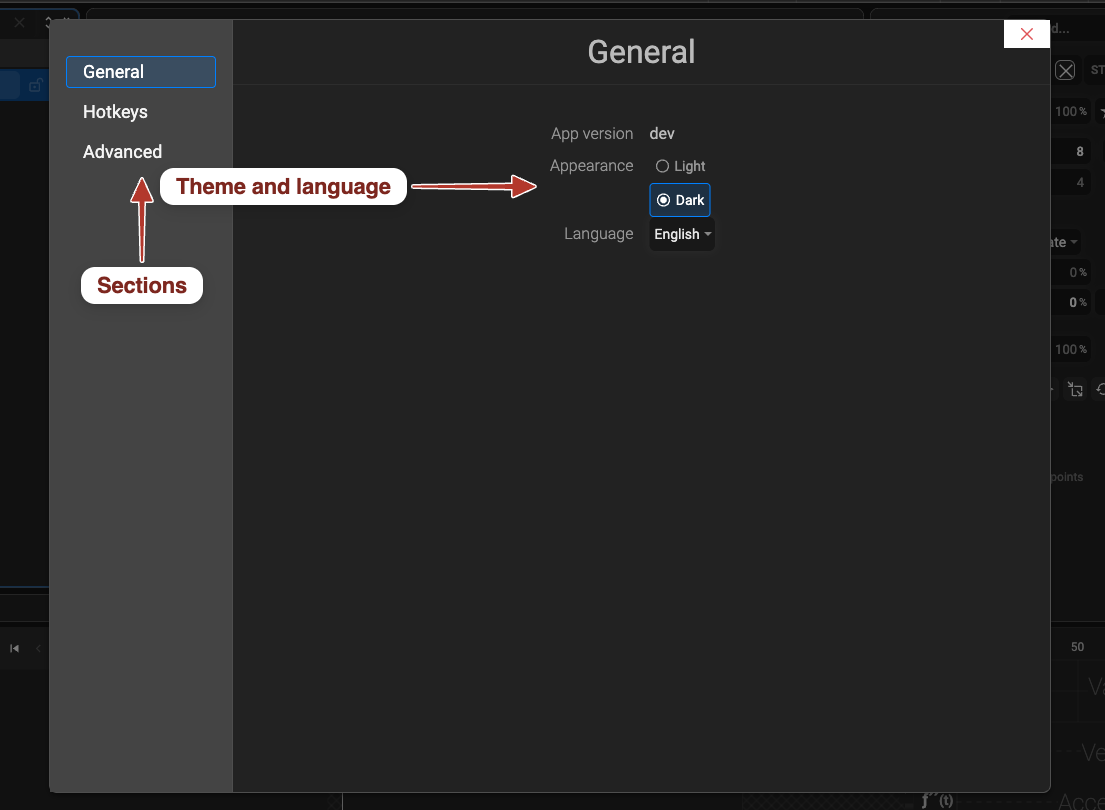
Section titled “Preferences”Open File › Preferences (on macOS: the application menu › Preferences).
| Tab | Settings |
|---|---|
| General | the app version; Appearance — Light or Dark theme (also the toolbar switch); Language — follow the system or pick one (also View › Language, listed in each language’s own name) |
| Hotkeys | the complete list of shortcuts, grouped by menu — the same as Keyboard shortcuts |
| Advanced | Reveal Logs in Finder / Explorer — the log files to attach to a bug report (Help › Report Issue) |
Importing From Other Apps
Section titled “Importing From Other Apps”The editor opens any SVG. Files from other tools work best when exported with these settings:
| From | Export tips |
|---|---|
| Figma | Export the frame as SVG with Include “id” attribute on, so layer names survive as object names. Outline text if the font is not available, or import the .ttf afterwards. |
| Adobe Illustrator | File › Export As › SVG: Styling Presentation Attributes, Font SVG (or convert to outlines), Object IDs Layer Names, Decimal 2–3. Avoid Internal CSS. |
| Inkscape | Save as Plain SVG rather than Inkscape SVG; the editor ignores Inkscape-only data. |
| Sketch, Affinity | Export SVG with layer names as ids and text as outlines if in doubt. |
After opening: check the Object Tree for groups you want to animate as one unit, convert text to outlines or import its font (Text), and remove unused definitions flagged in the Objects panel. Raster images inside the SVG stay bitmaps.
Troubleshooting
Section titled “Troubleshooting”The animation plays in the editor but not on my page.
The JSON file needs the player library on the page; a pre-rendered SVG must be inline or in an
<object> — inside <img> it shows a static frame. See
Add SVG animation to your project.
Something looks different in the preview than on the canvas. The preview is the real player. If the document’s file type is the CSS flavour, features that CSS cannot animate (path morphing, some filters) are dropped — the preview lists warnings. Switch to SVG + JS animation or JSON, or check SVG ↔ Lottie support for Lottie.
A property has no clock icon / cannot be animated. Only properties with a clock are animatable in the current file type; for the full set use JSON or SVG + JS. See What you can animate.
My keyframe change animates from 0 ms instead of holding still. A single keyframe does not hold a value — the segment before it interpolates from the previous keyframe. Add a keyframe with the same value where the hold should end (Keyframes).
The mask hides everything / the wrong part. For Make Mask the topmost selected object is the mask; for Add Mask Effect the lower object is. Check the stacking order in the Object Tree (Masks).
The exported Lottie is missing a filter, marker or pattern. Lottie has no equivalent — see the matrix in SVG ↔ Lottie support and the warnings in the export preview.
Text renders with the wrong font on another computer.
The text uses a Browser Font that machine does not have. Import the .ttf as a font asset or
convert the text to outlines (Text).
The shortcut letters do nothing. Single-letter shortcuts are ignored while a text field has focus — press Escape or click the canvas first.
Glossary
Section titled “Glossary”| Term | Meaning |
|---|---|
| Canvas | the drawing area; its size is the document’s view box |
| Object / layer | any element in the Object Tree — shape, path, text, group, image, instance |
| Path | a shape made of nodes and segments, editable with the Node tool |
| Node | a point on a path; corner or curved, with handles |
| Group | several objects acting as one; can be animated and coloured as a unit |
| Symbol / instance | artwork defined once; each placed copy (instance) is linked to it |
| Clone | a linked copy of a single object (<use>) that follows the original |
| Marker | a graphic drawn at a path’s start, mid or end nodes |
| Pattern | a tile repeated across a fill or stroke |
| Filter | a rendered effect (shadow, blur, colour adjustment) built from SVG primitives |
| Mask / mask effect / clip path | ways to hide part of an object with another object |
| Keyframe | the value of a property at one time; two keyframes make motion |
| Playhead | the vertical line marking the current time in the timeline |
| Easing | the curve that shapes the motion between two keyframes |
| Pin (auto animation) | record a keyframe for every animated property at once |
| Inner loop | a repeated keyframe range on one layer |
| Motion path | a path an object travels along |
| Trim stroke | showing only part of a stroke — draw-on / erase effects |
| Trigger | what starts the animation on the page: load, hover, click, scroll into view, code |
| Scroll timeline | the animation’s progress follows the page scroll |
| JSON (Pixodesk player) | the editor’s native animation file, played by the Pixodesk player |
| Pre-rendered SVG | an SVG with the animation built in as CSS or embedded JavaScript |
| Lottie / dotLottie | the cross-platform animation format; .lottie is its zipped container |
| Pixodesk 2D Animator (Lottie) | the sibling editor that creates and edits Lottie files directly |
| Pixodesk Animator Studio | the edition that bundles Pixodesk SVG Animator with Pixodesk 2D Animator (Lottie) |