Introduction
What the editor is and how it is organised, the workspace, and how SVG features map to Lottie. Read this once; then head to Quick Start. Which file to save is explained in Save, File Format.
What Is Pixodesk SVG Animator
Section titled “What Is Pixodesk SVG Animator”Pixodesk SVG Animator is a vector drawing and animation editor. You draw shapes, text and paths on a canvas, animate them with keyframes on a timeline, and save the result as a file that plays on any web page — as an SVG, as a JSON animation for the Pixodesk player, or as a Lottie animation.
Pixodesk SVG Animator is also part of Pixodesk Animator Studio, the edition that bundles it with Pixodesk Lottie Animator. Everything in these docs applies to both; where the Studio edition adds something, the page says so.
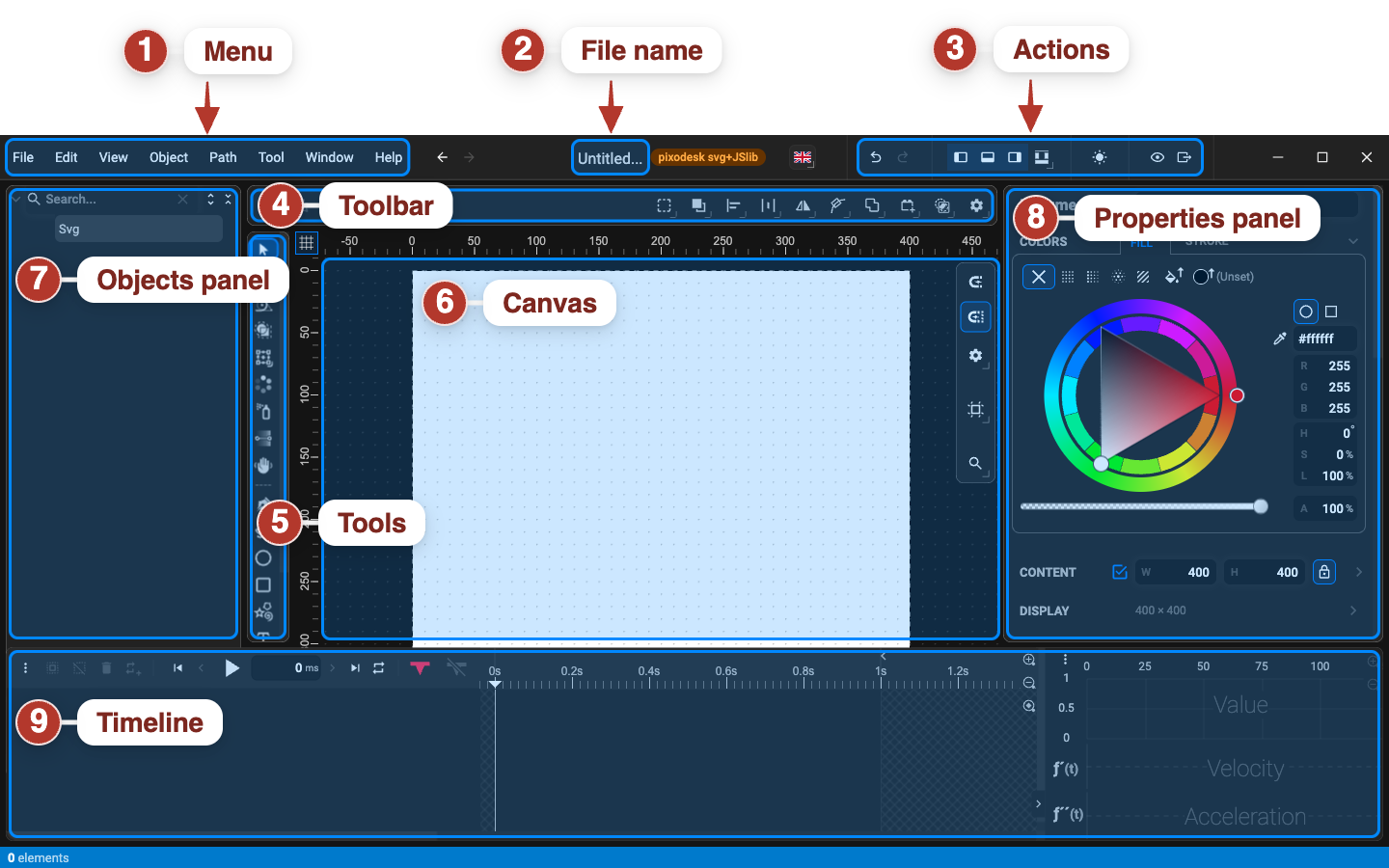
1 · Menu bar
Section titled “1 · Menu bar”The menu bar at the very top gives access to every command, organised into File, Edit, View, Object, Path, Tool, Window and Help. Most commands also have a keyboard shortcut.
2 · Toolbar
Section titled “2 · Toolbar”The horizontal bar directly below the menu bar. Its left side is context-sensitive — it shows the options and actions of the active tool (fill and stroke for a drawing tool, group / align / arrange for the Selection tool). Its right side is always the same: Undo / Redo, Snap, the Canvas, Zoom and Layout dropdowns, the theme switch, Preview and Export.
Reference: Toolbar.
3 · Tools panel
Section titled “3 · Tools panel”The vertical strip of tool buttons on the left. Click a tool or press its key to activate it. The active tool decides what the Toolbar shows, what the Properties panel shows, and how the mouse behaves on the canvas.
Reference: Drawing tools.
4 · Canvas
Section titled “4 · Canvas”The central working area where you draw, edit and preview. It shows your document at the current zoom level; rulers along the top and left edges help with placement, and an optional grid and canvas outline help with alignment. Objects outside the canvas boundary are still part of the document — hide them with Clip Canvas Content. Canvas size and aspect ratio are document properties; the Page tool changes the size interactively.
References: Canvas display options, Change canvas size, Snap, Pan, Zoom.
5 · Objects panel
Section titled “5 · Objects panel”The panel on the far left. It shows everything the document contains, in collapsible sections that you can resize by dragging their top edge:
- Object Tree — the full element hierarchy: select, rename, reorder, show, hide and lock layers.
- Symbols, Markers, Patterns, Filters — the reusable definitions stored in the document.
- Used Colors — every colour currently in use.
References: Object Tree, Symbols, Markers, Patterns, Filters, Used Colors.
6 · Properties panel and sections bar
Section titled “6 · Properties panel and sections bar”The panel on the right shows the editable properties of the selected object — or the document
properties when nothing (or the <svg/> root) is selected. It is divided into collapsible
sections: Color, Fill, Stroke, Transform, Appearance, Filter, Shape, and more depending on the
object. The narrow sections bar on the far right edge toggles each section on or off.
References: Properties panel, Document properties.
7 · Timeline panel
Section titled “7 · Timeline panel”The panel along the bottom is where animation happens. From left to right: the layer list with each animated property, the keyframe editor with the time ruler and keyframe markers, and the chart panel with the easing curves.
References: Timeline panel, Keyframes, Easing charts.
Preview panel
Section titled “Preview panel”A floating window that plays the current document with the real player, without saving. Open it with the Preview button on the toolbar. See Preview panel.
Status bar
Section titled “Status bar”The thin strip at the bottom shows the number of elements in the document and short status messages.
Show, hide and resize panels
Section titled “Show, hide and resize panels”All panels can be shown, hidden or maximised. Open the Layout dropdown on the toolbar (or use the View menu):
- Maximize Canvas (
⌘ / Ctrl + F) — hides all panels to give the canvas the whole window; the same command brings them back. - Left Panel — the Objects panel.
- Bottom Panel — the Timeline panel.
- Right Panel — the Properties panel and its sections bar.
- Show Keyframes — the keyframe editor inside the Timeline panel.
- Show Charts — the chart panel inside the Timeline panel.
Drag the edge between two panels to resize them. The four layout buttons in the top bar switch between preset layouts.
Dark and light theme
Section titled “Dark and light theme”The theme switch on the toolbar’s right side toggles between the dark theme (default) and the light theme. Screenshots in these docs use the dark theme.
SVG ↔ Lottie Support
Section titled “SVG ↔ Lottie Support”Cross-reference of feature support when exporting between SVG and Lottie inside Pixodesk SVG Studio.
| Feature | Lottie | SVG | Comments |
|---|---|---|---|
| Document | |||
<svg> | ✅ | ✅ | |
| viewBox | ✅ | ✅ | |
| preserveAspectRatio | ❌ | ✅ | |
<g> (group) | ✅ | ✅ | |
<defs> | ❌ | ✅ | |
<symbol> | ❌ | ✅ | |
<use> | ❌ | ✅ | |
<switch> | ❌ | ✅ | |
<view> | ❌ | ✅ | |
<a> (hyperlink) | ❌ | ✅ | |
<title> | ❌ | ✅ | |
<desc> | ❌ | ✅ | |
<metadata> | ❌ | ✅ | |
| Shapes | |||
<rect> | ✅ | ✅ | |
Rounded <rect> | ✅ | ✅ | |
<circle> | ✅ | ✅ | |
<ellipse> | ✅ | ✅ | |
<line> | ✅ | ✅ | |
<polyline> | ✅ | ✅ | |
<polygon> | ✅ | ✅ | |
<path> | ✅ | ✅ | |
| Path Data | |||
| MoveTo (M, m) | ✅ | ✅ | |
| LineTo (L, l) | ✅ | ✅ | |
| Horizontal LineTo (H, h) | ✅ | ✅ | |
| Vertical LineTo (V, v) | ✅ | ✅ | |
| Cubic Bezier (C, c) | ✅ | ✅ | |
| Smooth Cubic Bezier (S, s) | ✅ | ✅ | |
| Quadratic Bezier (Q, q) | ✅ | ✅ | |
| Smooth Quadratic Bezier (T, t) | ✅ | ✅ | |
| Elliptical Arc (A, a) | ✅ | ✅ | |
| ClosePath (Z, z) | ✅ | ✅ | |
| Embedded Content | |||
<image> | ✅ | ✅ | |
<foreignObject> | ❌ | ✅ | |
<text> | ✅ | ✅ | |
<tspan> | ❌ | ✅ | |
<textPath> | ✅ | ✅ | |
| Paint Servers | |||
<linearGradient> | ✅ | ✅ | |
<radialGradient> | ✅ | ✅ | |
<stop> | ✅ | ✅ | |
<pattern> | ❌ | ✅ | |
| Named color | ✅ | ✅ | |
| Hex color | ✅ | ✅ | |
| rgb() / rgba() | ✅ | ✅ | |
| hsl() / hsla() | ✅ | ✅ | |
| currentColor | ❌ | ✅ | |
| Fill | |||
| fill | ✅ | ✅ | |
| fill-opacity | ✅ | ✅ | |
| fill-rule (nonzero) | ✅ | ✅ | |
| fill-rule (evenodd) | ✅ | ✅ | |
| Stroke | |||
| stroke | ✅ | ✅ | |
| stroke-width | ✅ | ✅ | |
| stroke-opacity | ✅ | ✅ | |
| stroke-linecap (butt) | ✅ | ✅ | |
| stroke-linecap (round) | ✅ | ✅ | |
| stroke-linecap (square) | ✅ | ✅ | |
| stroke-linejoin (miter) | ✅ | ✅ | |
| stroke-linejoin (round) | ✅ | ✅ | |
| stroke-linejoin (bevel) | ✅ | ✅ | |
| stroke-linejoin (miter-clip) | ❌ | ✅ | |
| stroke-linejoin (arcs) | ❌ | ✅ | |
| stroke-miterlimit | ✅ | ✅ | |
| stroke-dasharray | ✅ | ✅ | |
| stroke-dashoffset | ✅ | ✅ | |
| Markers | |||
<marker> | ❌ | ✅ | |
| marker-start | ❌ | ✅ | |
| marker-mid | ❌ | ✅ | |
| marker-end | ❌ | ✅ | |
| Clipping & Masking | |||
<clipPath> | ✅ | ✅ | |
<mask> | ✅ | ✅ | |
| clip-path | ✅ | ✅ | |
| mask | ✅ | ✅ | |
| mask-type (alpha) | ✅ | ✅ | |
| mask-type (luminance) | ✅ | ✅ | |
| Filters | |||
<filter> | ✅ | ✅ | |
<feGaussianBlur> | ✅ | ✅ | |
<feOffset> | ❌ | ✅ | |
<feBlend> | ❌ | ✅ | |
<feComposite> | ❌ | ✅ | |
<feColorMatrix> | ❌ | ✅ | |
<feComponentTransfer> | ❌ | ✅ | |
<feFuncR> / <feFuncG> / <feFuncB> / <feFuncA> | ❌ | ✅ | |
<feFlood> | ❌ | ✅ | |
<feImage> | ❌ | ✅ | |
<feMerge> | ❌ | ✅ | |
<feMorphology> | ❌ | ✅ | |
<feTile> | ❌ | ✅ | |
<feTurbulence> | ❌ | ✅ | |
<feDisplacementMap> | ❌ | ✅ | |
<feConvolveMatrix> | ❌ | ✅ | |
<feDiffuseLighting> | ❌ | ✅ | |
<feSpecularLighting> | ❌ | ✅ | |
<feDropShadow> | ✅ | ✅ | |
<feDistantLight> | ❌ | ✅ | |
<fePointLight> | ❌ | ✅ | |
<feSpotLight> | ❌ | ✅ | |
| Text | |||
| font-family | ✅ | ✅ | |
| font-size | ✅ | ✅ | |
| font-weight | ✅ | ✅ | |
| font-style | ✅ | ✅ | |
| font-variant | ❌ | ✅ | |
| text-anchor | ✅ | ✅ | |
| letter-spacing | ✅ | ✅ | |
| word-spacing | ❌ | ✅ | |
| kerning | ❌ | ✅ | |
Text on path (<textPath>) | ✅ | ✅ | |
| Transforms (2D) | |||
| translate | ✅ | ✅ | |
| scale | ✅ | ✅ | |
| rotate | ✅ | ✅ | |
| skewX | ✅ | ✅ | |
| skewY | ✅ | ✅ | |
| matrix | ✅ | ✅ | |
| Transforms (3D, via CSS) | |||
| rotateX / rotateY / rotateZ | ❌ | ✅ | |
| translate3d | ❌ | ✅ | |
| scale3d | ❌ | ✅ | |
| perspective | ❌ | ✅ | |
| Styling & Scripting | |||
<style> | ❌ | ✅ | |
<script> | ❌ | ✅ | |
| class attribute | ❌ | ✅ | |
| style attribute | ❌ | ✅ | |
| Animation — SMIL Elements | |||
<animate> | ✅ | ✅ | |
<animateTransform> | ✅ | ✅ | |
<animateMotion> | ✅ | ✅ | |
<set> | ✅ | ✅ | |
<mpath> | ✅ | ✅ | |
| Animation — SMIL Attributes | |||
| attributeName | ✅ | ✅ | |
| from | ✅ | ✅ | |
| to | ✅ | ✅ | |
| by | ✅ | ✅ | |
| values | ✅ | ✅ | |
| begin | ✅ | ✅ | |
| end | ✅ | ✅ | |
| dur | ✅ | ✅ | |
| min | ❌ | ✅ | |
| max | ❌ | ✅ | |
| repeatCount | ❌ | ✅ | |
| repeatDur | ❌ | ✅ | |
| fill (freeze / remove) | ✅ | ✅ | |
| restart | ❌ | ✅ | |
| calcMode (linear) | ✅ | ✅ | |
| calcMode (discrete) | ✅ | ✅ | |
| calcMode (paced) | ❌ | ✅ | |
| calcMode (spline) | ✅ | ✅ | |
| keyTimes | ✅ | ✅ | |
| keySplines | ✅ | ✅ | |
| additive | ❌ | ✅ | |
| accumulate | ❌ | ✅ | |
| path (motion) | ✅ | ✅ | |
| keyPoints | ❌ | ✅ | |
| rotate (motion) | ✅ | ✅ | |
| Animation — SMIL Triggers | |||
| Time offset (e.g. 5s) | ✅ | ✅ | |
| Event trigger (element.click) | ❌ | ✅ | |
| Syncbase (anim1.end+1s) | ❌ | ✅ | |
| Repeat (repeat(n)) | ❌ | ✅ | |
| indefinite | ❌ | ✅ | |
| Animation — CSS | |||
| @keyframes | ✅ | ✅ | |
| animation-name | ✅ | ✅ | |
| animation-duration | ✅ | ✅ | |
| animation-timing-function | ✅ | ✅ | |
| animation-delay | ✅ | ✅ | |
| animation-iteration-count | ❌ | ✅ | |
| animation-direction | ❌ | ✅ | |
| animation-fill-mode | ✅ | ✅ | |
| animation-play-state | ❌ | ✅ | |
| transition-property | ❌ | ✅ | |
| transition-duration | ❌ | ✅ | |
| transition-timing-function | ❌ | ✅ | |
| transition-delay | ❌ | ✅ | |
| CSS Timing Functions | |||
| linear | ✅ | ✅ | |
| ease | ✅ | ✅ | |
| ease-in | ✅ | ✅ | |
| ease-out | ✅ | ✅ | |
| ease-in-out | ✅ | ✅ | |
| cubic-bezier() | ✅ | ✅ | |
| steps() | ❌ | ✅ | |
| Animation — JavaScript | |||
| Web Animations API (element.animate()) | ❌ | ✅ | |
| WAAPI control (play / pause / reverse / finish) | ❌ | ✅ | |
| WAAPI properties (currentTime, playbackRate) | ❌ | ✅ | |
| requestAnimationFrame | ❌ | ✅ | |
| Direct DOM updates | ❌ | ✅ | |
| svg.pauseAnimations() | ❌ | ✅ | |
| svg.unpauseAnimations() | ❌ | ✅ | |
| svg.getCurrentTime() | ❌ | ✅ | |
| svg.setCurrentTime() | ❌ | ✅ | |
| beginEvent / endEvent / repeatEvent (SMIL DOM events) | ❌ | ✅ | |
| Pixodesk SVG Studio Tools | |||
| Shape Builder | ✅ | ✅ | |
| Round Corners | ✅ | ✅ | |
| Repeater (Clone) | ✅ | ✅ | |
| Spray | ✅ | ✅ | |
| Stars and Polygons | ✅ | ✅ | |
| Bezier Pen | ✅ | ✅ | |
| Move Along Path | ✅ | ✅ | |
| Trim Path | ✅ | ✅ | |
| Auto-Animate (Pin) | ✅ | ✅ | |
| Easing curves and charts | ✅ | ✅ | |
| Animation Blocks | ✅ | ✅ | |
| Custom TTF Fonts | ✅ | ✅ | |
| Animated Vector Text | ✅ | ✅ | |
| Animated Repeater (per-instance) | ✅ | ✅ | |
| Animated Spray (per-particle) | ✅ | ✅ | |
| Animated Patterns | ❌ | ✅ | |
| Animated Markers | ❌ | ✅ | |
| Stroke morphing | ✅ | ✅ | |
| Dash Array animation | ✅ | ✅ |
Sources
Section titled “Sources”- Lottie supported-features (Airbnb) — Lottie capability baseline
- W3C SVG 2 Specification — SVG capability baseline
- MDN SVG reference