Text
Text in Pixodesk SVG Animator is real, editable text: pick a font, type, style it in the Properties panel, animate it like any other object, and decide at save time whether the file uses live fonts or baked outlines.
Text Objects
Section titled “Text Objects”Press Shift + T (the Text tool), click on the canvas and type. The text is edited directly
on the canvas; click elsewhere or press Escape to finish. Everything about its look lives in
the Text sections of the Properties panel.
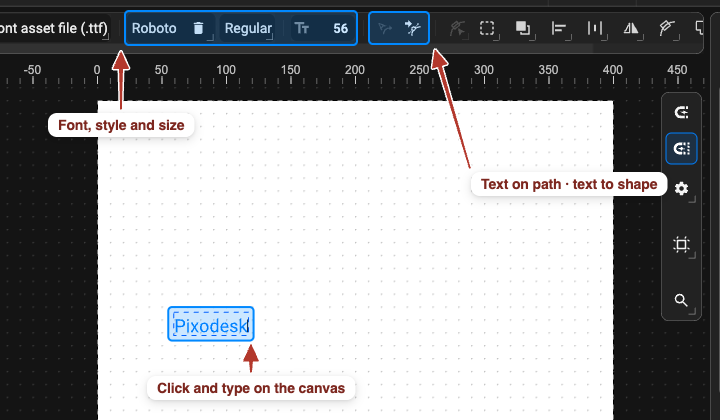
- Source — where the font comes from:
- Font Asset File (.ttf) — a font file imported into the document (File › Import Font Files (TTF)). The font travels with the file, so the text looks the same everywhere.
- Browser Font — a font installed on the viewer’s computer or provided by the page.
- Name — the font family.
- Weight / style — for an asset file, the styles the file contains; for a browser font, the weight plus an italic toggle.
- Size — with a unit:
px,pt,em,rem,exor%. - Use Glyphs (asset fonts only) — embeds the letters you actually use as vector outlines, so
the saved SVG / JSON is self-contained and needs no font file. The embedded outlines are listed
in the Used Glyphs section of the Objects panel. With a browser font, the page must provide
the font itself (CSS
@font-face).
Decoration and case
Section titled “Decoration and case”- Decoration — Underline, Overline, Line-through; several can be combined.
- Transform — None, Uppercase, Lowercase, Capitalize (first letter of each word).
Alignment and spacing
Section titled “Alignment and spacing”- Anchor — how the text sits relative to its start point: Start (left in most languages), Middle (centred), End (right).
- Letter spacing — the space between characters.
- Word spacing — the space between words.
Position
Section titled “Position”- Start (x / y) — the text’s start point on the canvas.
- Offset (dx / dy) — an extra shift applied on top, handy for fine adjustments (and for animation) without touching the start point.
Text as outlines
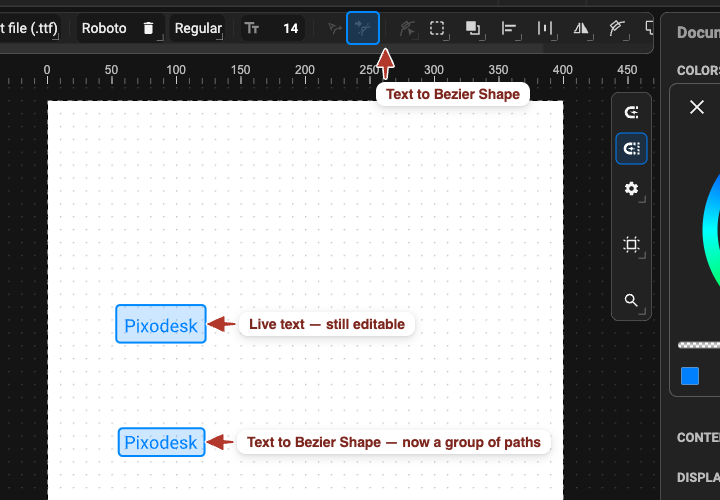
Section titled “Text as outlines”Text to Bezier Shape (in the toolbar with the Text tool) converts the text into a group of paths, one per character, keeping fill, stroke, opacity and animation — for logo work, node-level editing, or when a font cannot ship with the file. It needs an asset (.ttf) font; the text stops being editable as text.
Text Along Path
Section titled “Text Along Path”Text can follow a curve. There are three related commands; which one you see depends on the tool and the selection.
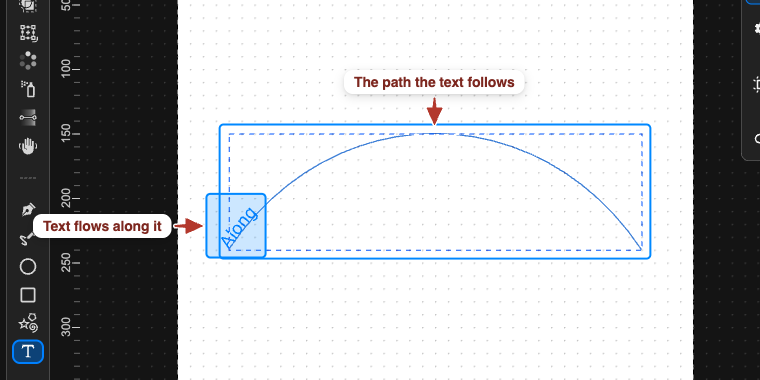
Put text on a path
Section titled “Put text on a path”- Draw the path (Pen tool) and create the text.
- Select both — the text and the path.
- With the Text tool active, click Put Text on Path in the toolbar.
The text now follows the path instead of a straight line. Edit the path’s nodes with the Node tool and the text re-flows.
The Text Path section
Section titled “The Text Path section”Text on a path gets a Text Path section in the Properties panel:
| Setting | Meaning |
|---|---|
| Along Path | the switch itself — off returns the text to a straight line |
| Create path shape | makes a standalone, editable path from the text’s curve |
| Offset | slides the text along the path — keyframe it to animate the text travelling |
| Overflow | Clip hides letters past the end of the path; Extend continues them (glyph mode, open paths) |
| Length Adjust / Method / Spacing, Text Length | the browser’s own text-path layout controls (hidden in glyph mode) |
Text on a path is single-line; a multi-line text is flattened to one line when you put it on a path.
Moving any object along a path
Section titled “Moving any object along a path”The related Move Element Along Path (Selection tool, two objects selected) makes the top object travel along the lower one — see Move along path.
Next