Symbols
A symbol is a piece of artwork defined once and placed many times. Every placed copy — an
instance — points at the same definition, so editing the symbol updates all of them, and the
file stays small no matter how many you place. In SVG terms: a <symbol> in <defs> and <use>
instances.
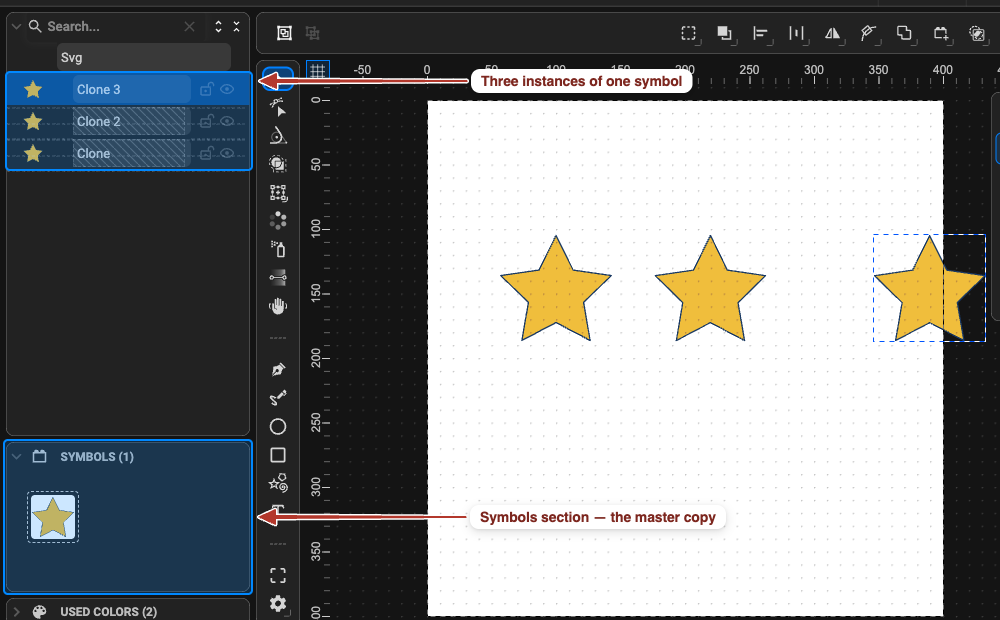
Use symbols for anything repeated — icons, bullets, characters, UI elements — and for animated building blocks: an instance can start its symbol’s animation later, play it faster, or crop it.
Create a Symbol
Section titled “Create a Symbol”- Select one or more objects.
- Choose Object › Make Symbol (
⌘ / Ctrl + P), or click Make Symbol in the toolbar (Selection or Transform tool).
The selection is replaced by an instance (a <use> layer in the Object Tree) and the definition
appears in the Symbols section of the Objects panel with a thumbnail.
Place Instances
Section titled “Place Instances”- Drag the symbol’s thumbnail from the Symbols section onto the canvas.
- Duplicate an existing instance: Edit › Duplicate (
⌘ / Ctrl + D) or copy / paste.
Every instance is linked. Each one has its own position, rotation, scale, opacity and — if the symbol’s shapes use unset colours — its own fill and stroke.
Instance properties
Section titled “Instance properties”With an instance selected, the Properties panel adds:
| Section | Setting | Meaning |
|---|---|---|
| Symbol | name, Edit Symbol | which symbol it shows; enter Symbol View |
| Display | Offset (X, Y) | shifts the content inside the instance box |
| Custom Size | override the symbol’s natural width / height | |
| Animation | Start (ms) | delay before the symbol’s own animation starts |
| Stretch (%) | playback speed of the symbol’s animation (100 % = normal) | |
| Crop Time | clip the symbol’s animation to the instance’s time range |
Edit a Symbol
Section titled “Edit a Symbol”Changes to the definition apply to every instance at once.
- Double-click the symbol’s thumbnail in the Symbols section — or select an instance and click Edit Symbol in the Properties panel.
- You are in Symbol View: the canvas shows only this symbol; edit shapes, colours and animation as usual.
- Click the
…row at the top of the Object Tree to return to the document.
Detach an Instance
Section titled “Detach an Instance”To turn one instance back into ordinary, independent objects, select it and choose Object › Replace Link with its Referenced Content (also a toolbar button). The instance becomes a plain copy; the symbol definition and the other instances are unchanged.
Delete Unused Symbols
Section titled “Delete Unused Symbols”A symbol without instances is labelled Unused in the Symbols section (and a red triangle marks the collapsed section). Click the bin icon next to it to delete it. Symbols that still have instances cannot be deleted.
Symbols and the Saved File
Section titled “Symbols and the Saved File”Symbols export as <symbol> + <use> in SVG and JSON, and as pre-compositions in Lottie. In
Pixodesk Animator Studio’s Lottie editor the same concept is called an Animation Block.