Save, File Format
The editor saves one document as any of several files. This section explains what each file is and when to choose it, then the save commands and options, and the preview. Lottie, video and image output are in Export to Lottie, Video, Image.
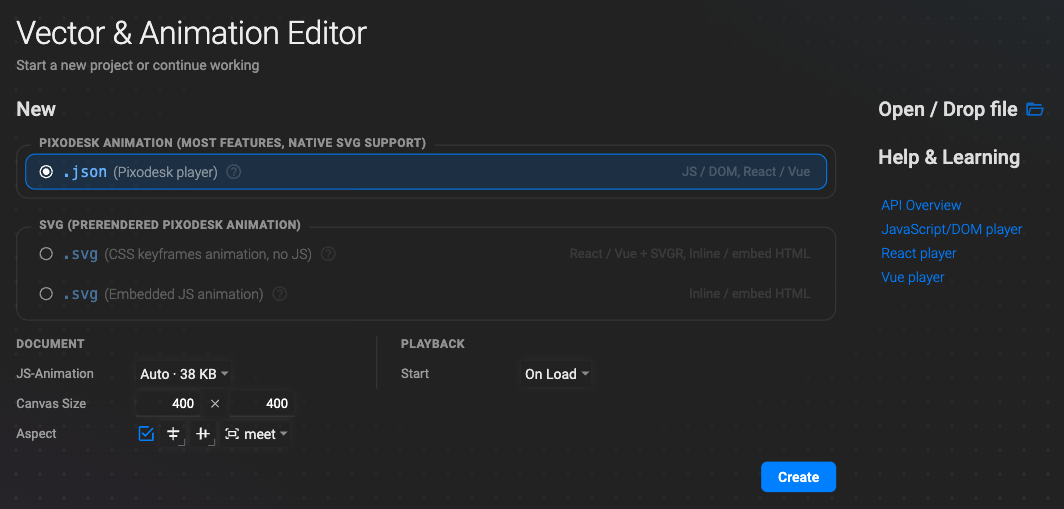
File Formats: Which One to Save
Section titled “File Formats: Which One to Save”Pixodesk SVG Animator saves an animation as one of three kinds of file: a JSON animation for the Pixodesk player, a pre-rendered SVG with the animation built in, or a Lottie JSON. The formats are interchangeable — the editor converts between them at any time, so you can switch when your target platform changes, without losing your work.
You choose the file type when you create a document, and you can change it later in the
File section of the document properties (select nothing, or the <svg/> root in the Object
Tree).
The short answer
Section titled “The short answer”| You want to… | Save as | Needs JavaScript on the page? |
|---|---|---|
| Use it in a React, Vue, Next.js or Nuxt app, or control it from code | JSON (Pixodesk player) | Yes — the player library |
| Drop a file into plain HTML, a CMS or a static site and have it just play | SVG + CSS animation | No |
| Same, but start it on click, hover or scroll into view | SVG + CSS animation + JS triggers | A few lines, embedded in the file |
| One self-contained SVG with every editor feature | SVG + JS animation | Embedded in the file |
| Play it with a Lottie player (mobile apps, existing Lottie pipelines) | Lottie JSON or .lottie | The Lottie player |
The player docs have a longer decision page with pros and cons per format: Choosing a format.
JSON for the Pixodesk player
Section titled “JSON for the Pixodesk player”This is the most flexible format, and the recommended one for web applications.
All animation data, structure and metadata are stored in a single JSON file. At run time the Pixodesk player renders the SVG DOM and drives the playback. It integrates with the Pixodesk player libraries:
@pixodesk/svg-animator-web@pixodesk/svg-animator-react@pixodesk/svg-animator-vue
Use it when you need maximum control, programmatic interaction, or framework integration. The JSON format is SSR-safe and works well in modern rendering environments. It can be used:
- in applications built with frameworks such as React, Vue, Next.js and Nuxt, where animations may need to load dynamically or react to application state;
- in vanilla JavaScript / DOM pages, loading animations dynamically and controlling them through the JavaScript API;
- with static site generators and CMS platforms such as Astro, Jekyll, WordPress and Shopify.
Save it with File › Save (file type .json), or File › Save As JSON (for Web, React,
Vue) from a document of another type. How to play it: Player docs.
Pre-rendered SVG
Section titled “Pre-rendered SVG”A pre-rendered SVG has the animation embedded directly in the document. The file is self-contained and runs on its own in modern browsers — no library to install. There are three flavours; the editor writes the one you choose.
SVG + CSS animation
Section titled “SVG + CSS animation”The animation is written as CSS keyframes inside a <style> block in the SVG (file type .svg,
SVG − CSS keyframes animation, no JS in the File section or the File menu).
- No
<script>tag — pure CSS. - Ideal for simple, lightweight animations: icons, loaders, logo reveals.
- Starts on load or on hover. Not every editor feature can be expressed in CSS — the preview warns you when something will not survive.
SVG + CSS animation + JS triggers
Section titled “SVG + CSS animation + JS triggers”The same CSS animation plus a minimal JavaScript fragment that starts it on an event:
- click
- hover
- scroll into view
- custom (programmatic) events
The file stays mostly self-contained while reacting to user interaction. You do not choose this flavour explicitly: pick On Click or On Scroll into View (or a Reset / Continue out-action) with the CSS file type and the editor adds the script for you.
SVG + JS animation
Section titled “SVG + JS animation”Embeds the Pixodesk player (@pixodesk/svg-animator-web) inside a <script> tag in the SVG.
Playback uses one of two engines, chosen with the JS-Animation mode (Auto picks the best
one):
- Web Animations API (WAAPI) — the browser’s native animation engine, high performance;
- Animation frames (requestAnimationFrame) — universal support where WAAPI is not available.
This flavour has maximum compatibility and run-time flexibility in a single SVG file; it is the
one that supports every editor feature. File type .svg with SVG − Embedded JS animation;
Embed JS Player decides whether the player is inside the file or referenced as a script.
Save a pre-rendered SVG with File › Save (file type .svg, with the SVG − CSS keyframes
/ SVG − Embedded JS choice in the File menu), or File › Save As SVG (for static
websites). What the file looks like and how to embed it:
Pre-rendered SVG.
Lottie
Section titled “Lottie”A Lottie JSON file is designed for cross-platform playback with the Lottie players on web, mobile and desktop. It contains vector shapes, animation timelines, and transform and keyframe data.
Pixodesk SVG Animator saves Lottie with File › Save As Lottie JSON, File › Save As dotLottie (.lottie), or the Export dialog’s Lottie tab. Not every editor feature has a Lottie equivalent — check SVG ↔ Lottie feature compatibility and the warnings in the export preview.
In Pixodesk Animator Studio, Lottie files can also be opened and edited directly in the Lottie editor.
Save Options
Section titled “Save Options”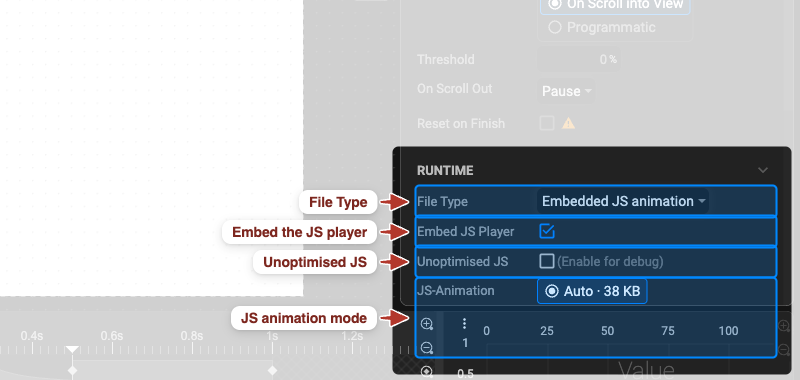
File › Save (⌘ / Ctrl + S) writes the document in its current file type; File › Save As…
(⇧ ⌘ / Ctrl + Shift + S) asks for a new name and location. The file type is a document property —
the File section of the Properties panel when nothing is selected:
- File Type — JSON for the Pixodesk player (
.json), or pre-rendered SVG (.svg) with CSS keyframes or Embedded JS animation (the same choice is a radio in the File menu: SVG − CSS keyframes animation, no JS / SVG − Embedded JS animation). - JS-Animation — for embedded JS: Auto (the editor picks the engine per feature), Web Animation API, or Animation Frames; the size of the embedded player is shown next to each choice.
- Embed JS Player — embed the player inside the SVG, or reference it as an external script.
- Unoptimised JS — write the readable, non-minified player (for debugging only).
To write another type without changing your document, use the cross-format commands in the File menu: Save As JSON (for Web, React, Vue), Save As SVG (for static websites), Save As Lottie JSON, Save As dotLottie (.lottie). Which type to pick: above.
Save Preview Demo
Section titled “Save Preview Demo”File › Save Preview Demo… writes the preview page itself as a standalone HTML file — the animation with the same scroll / trigger wrapper the preview uses. Send it to a client or open it in any browser to show the animation exactly as it will behave, without a website around it.
Preview Panel
Section titled “Preview Panel”The Preview Panel lets you see exactly how your animation will look and behave in a browser — without saving the document first. It renders the current state of your animation live using the same runtime that end users will see.
Opening the Preview Panel
Section titled “Opening the Preview Panel”Click the Show Preview Panel button in the top Toolbar. The panel opens as a floating window over the canvas.
To close it, click the × button in the panel header or press the Show Preview Panel toolbar button again.
What It Shows
Section titled “What It Shows”The Preview Panel contains an embedded browser frame that runs your animation using the Pixodesk player. It reflects the animation as it currently exists in the editor — including all keyframes, easing, loops, and object properties.
Because the preview is generated directly from the current document state, you do not need to save or export before previewing. Changes made in the editor are visible in the preview immediately after it is refreshed.
Resizing
Section titled “Resizing”The panel can be resized by dragging its edges to adjust width and height as needed.