Object Creation Tools
Three tools make new objects out of the ones you already have: Shape Builder combines overlapping shapes, Repeater arranges copies in lines and circles, Spray scatters copies across the canvas. All three keep the result editable.
Shape Builder
Section titled “Shape Builder”Build complex shapes from simple overlapping ones — merge, subtract or extract the regions where they overlap, directly on the canvas, without drawing curves by hand.
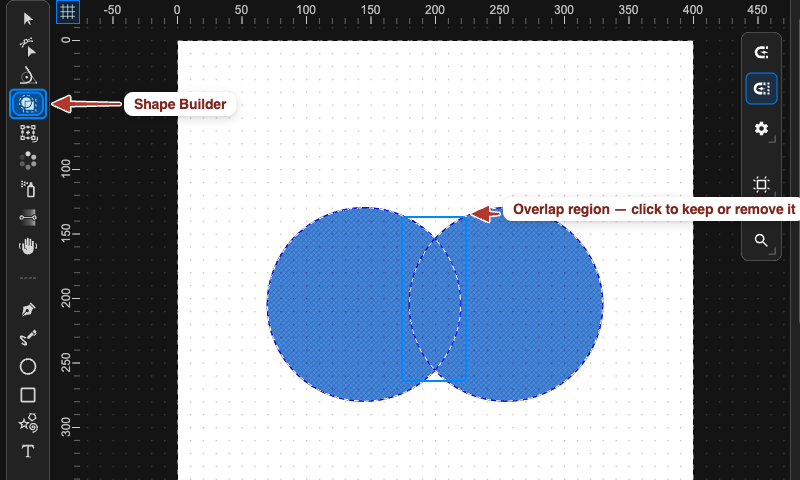
- Select two or more shapes.
- Press
B(Shape Builder). A mesh appears over the shapes; every region formed by the overlaps can be picked. - Click regions to add them to the new shape — or drag across several regions at once.
The toolbar has two modes and a set of quick selections:
- Add (+) — the clicked regions become one unified shape.
- Remove (−) — the clicked regions are deleted; use it to cut holes or trim overlaps.
- All · Subtract · Intersect · Exclude · Deselect — select all regions, prepare a subtraction, keep only the overlaps, keep everything except the overlaps, or clear the selection.
For the classic boolean operations on whole objects (Unite, Subtract, Intersect, Exclude) see Path operations.
Repeater
Section titled “Repeater”Create many synchronised copies of an object with one click — rows, grids, radial arrays — that stay linked to the original: edit the original and every copy follows.
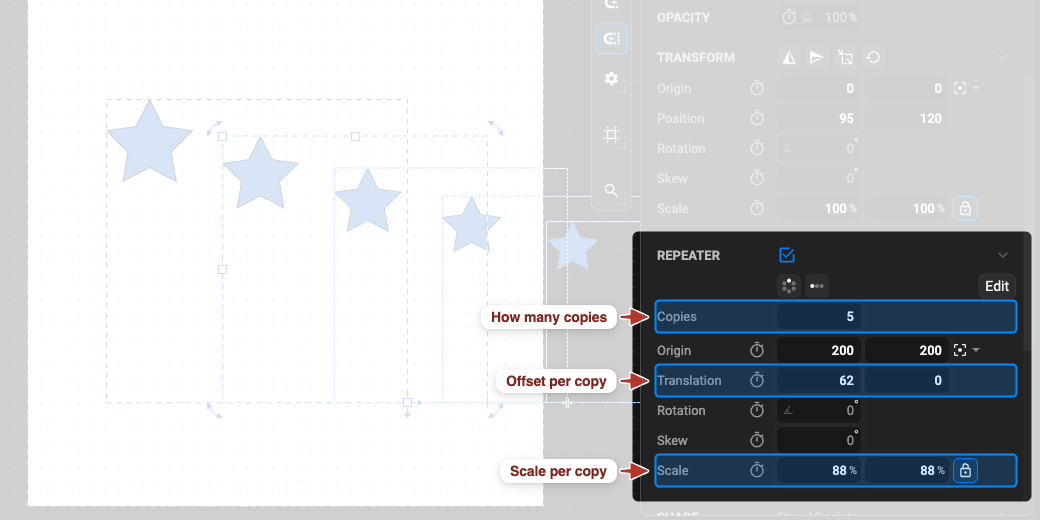
- Select the object (several objects also work — they repeat as one unit).
- Group it: Object › Group (
⌘ / Ctrl + G). - Tick Repeater in the Properties panel — or press
Yfor the Repeater tool.
Then set, in the Repeater section:
| Property | Meaning |
|---|---|
| Copies | how many instances to generate |
| Origin | the pivot the copies are arranged around |
| Translation | the distance and direction between consecutive copies |
| Rotation | the angle added with each copy |
| Scale | the size change from one copy to the next |
The toolbar (Repeater tool) has presets and shortcuts: Circle (a perfect radial array), Line (a straight row), Add one clone / Remove one clone, Cancel Repeat (removes the effect from the group). The group’s shape and the repeater settings are edited independently, so you can restyle the original at any time.
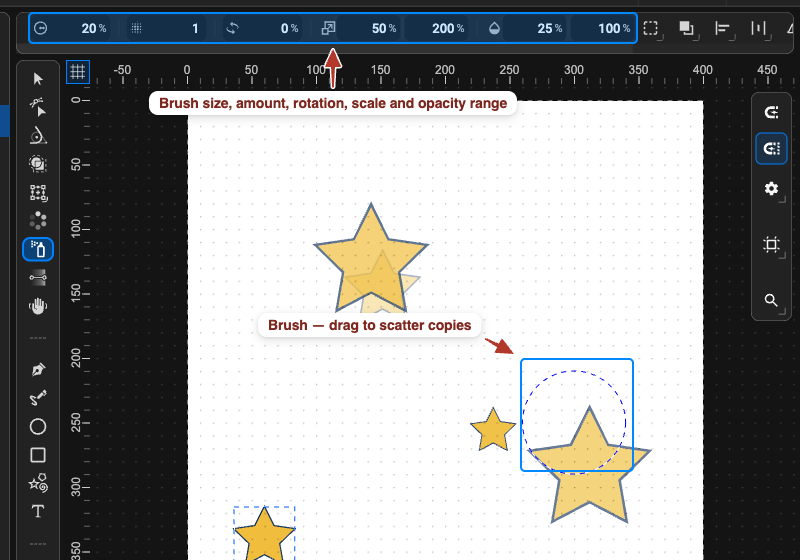
Scatter copies of an object with organic, randomised size, rotation and opacity — leaves, stars, dust, confetti.
- Select the object and group it (
⌘ / Ctrl + G). A group can hold several shapes — the tool sprays the cluster as one unit. - Pick the Spray tool in the Tools panel.
- Click, or drag across the canvas, to distribute copies.
The copies are SVG <use> clones of the original: hundreds of them stay light, and changing the
original inside the group updates every sprayed copy. Toolbar settings:
| Setting | Meaning |
|---|---|
| Spray Radius | the size of the area each click covers |
| Amount | how many copies per click / drag step |
| Rotation | random rotation applied to each copy |
| Min / Max Scale | the size range the copies are picked from |
| Min / Max Opacity | the transparency range — fade-outs, depth, atmosphere |
Next