Masks
A mask hides part of an object using the shape of another object — a photo inside a circle, a line drawing revealed by a sweeping rectangle, text that shows a gradient through its letters. The editor offers three variants; all keep both objects editable and animatable.
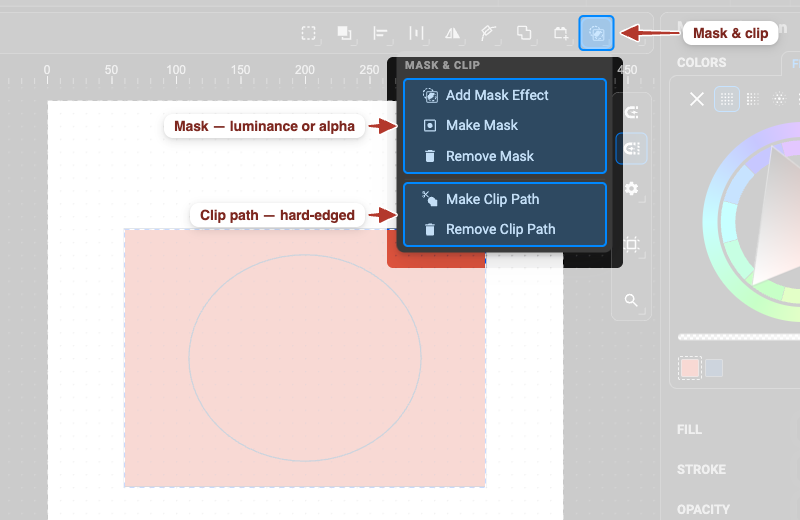
| Variant | Which object hides | Menu | Best for |
|---|---|---|---|
| Mask | the top selected object becomes the mask of the one below | Object › Make Mask | classic SVG masking, including soft edges via opacity |
| Mask Effect | the lower object controls the visibility of the one above — a live reference, both stay on the canvas | Object › Add Mask Effect | masking with an object that also stays visible or animates on its own |
| Clip Path | the top object’s outline clips the one below (hard edge, the clip shape leaves the canvas) | Object › Make Clip Path | crisp cut-outs, windows, reveals |
All three are also in the Mask dropdown of the toolbar (Selection or Transform tool). Each needs exactly two objects selected; a group counts as one object, so group first when several shapes should be masked together.
- Place the mask shape above the content in the Object Tree and select both.
- Object › Make Mask.
Only the content inside the mask shape stays visible. The mask keeps its own fill and opacity — a semi-transparent or gradient-filled mask fades the content — and it can be moved, reshaped or animated at any time.
Mask Effect
Section titled “Mask Effect”- Place the masking shape below the content and select both.
- Object › Add Mask Effect.
The lower object now defines where the upper one is visible, while remaining an ordinary, independent object — animate it, restyle it, reuse it. Because the link is a reference, removing the effect leaves both objects exactly as they were.
Clip Path
Section titled “Clip Path”- Place the clipping shape above the content and select both.
- Object › Make Clip Path.
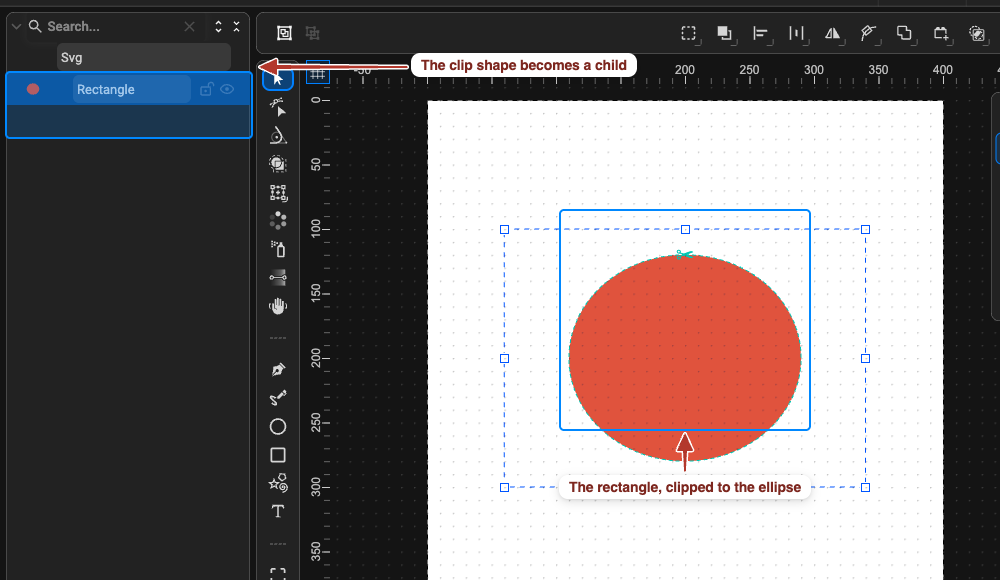
The top shape’s geometry becomes a clip path (it disappears as a drawable object) and the content below is cut to it — hard-edged, no transparency. A clip made from a single animated path keeps its shape animation; more complex animated clips are frozen at the current frame (a warning tells you).
Animating a Mask
Section titled “Animating a Mask”Masks are a favourite animation device: keyframe the mask shape’s position, scale or path and the content is revealed, wiped or spot-lit. A mask that slides across a line drawing, a circle that grows to reveal a photo, a trim-stroke path used as a mask for a “drawing on” effect — all work in every saved format; see SVG ↔ Lottie support for the Lottie limits.
Remove a Mask, Mask Effect or Clip Path
Section titled “Remove a Mask, Mask Effect or Clip Path”Select the masked object (or the group) and choose Object › Remove Mask or Object › Remove Clip Path — also in the toolbar’s Mask dropdown. For a Mask, the mask shape returns to the canvas as a normal object; for a Mask Effect, the reference is dropped and both objects are unchanged.