Loop Animation
“Loop” means three different things in the editor. Picking the right one saves a lot of confusion:
| Loop | Where | Affects | Use it for |
|---|---|---|---|
| Playback loop | timeline toolbar toggle | preview in the editor only | watching your work repeat while you edit |
| Inner loop | one layer / a keyframe range | the document — exported | one object repeating a motion (spinner, blink, bounce) |
| Export loop | document Loop setting | the whole exported animation | the final animation repeating on the page |
Playback Loop
Section titled “Playback Loop”Click Loop Animation in the timeline toolbar. When the playhead reaches the end it jumps back to the start and playback continues. Nothing is saved to the file — it is a viewing aid.
Inner Loop
Section titled “Inner Loop”An inner loop repeats a range of keyframes on one layer for as long as the animation lasts, while everything else plays normally — without copying keyframes by hand.
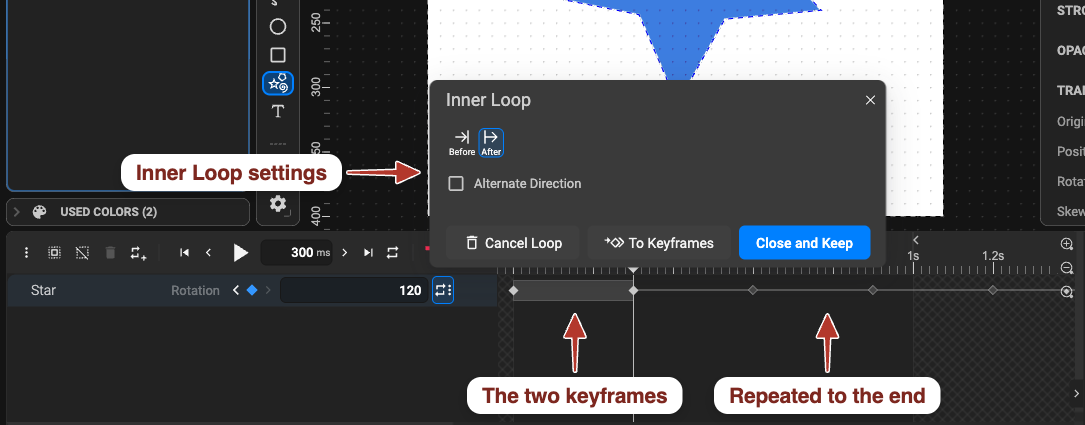
Add one
Section titled “Add one”- From the layer row — click the loop button at the end of the property row in the layer list; the Inner Loop panel opens.
- From keyframes — select the keyframes to repeat and choose Add Inner Loop to Selected Keyframes (⋮ menu of the timeline toolbar).
The Inner Loop panel
Section titled “The Inner Loop panel”- Before / After — repeat the range before the first keyframe or after the last (the usual choice).
- Selected Keyframes (slider) — how many keyframe intervals form the repeated segment.
- Alternate Direction — every second repetition plays backwards: a back-and-forth swing instead of a restart.
- To Keyframes — bake the loop into real keyframes so you can edit individual repetitions.
- Cancel Loop — remove the loop; Close and Keep — close the panel, keep the loop.
Remove Inner Loop from Selected Keyframes in the ⋮ menu removes it too.
Export Loop
Section titled “Export Loop”Select nothing (or the <svg/> root) and, in the Animation section of the Properties panel,
switch Loop on. The saved animation restarts every time it finishes; off, it plays once and
holds the last frame.
It applies to every output — JSON, SVG with JS, and the CSS flavour (written as
animation-iteration-count: infinite) — and to the Export dialog’s video and GIF
targets, which have their own loop options.
Related playback settings — Direction (normal, reverse, alternate), Fill mode, Delay, Iterations — are on Playback and triggers.