Filters
Filters add rendered effects to any object or group — drop shadows, blur, glow, colour adjustments, distortion — without changing the object’s geometry. They are SVG filters: a chain of primitives stored once and shared by every object that uses the same filter.
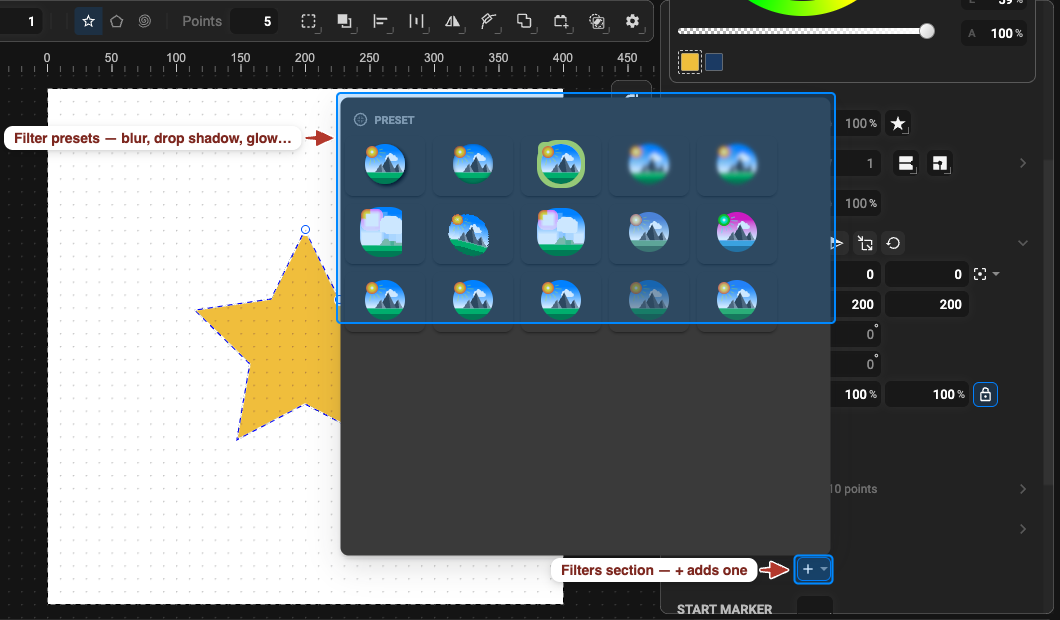
Add a Filter
Section titled “Add a Filter”- Select the object or group.
- In the Properties panel, open the Filter section and click Add Filter.
- Pick a preset. The effect is applied immediately.
Presets: Drop Shadow · Inner Shadow · Outline · Gaussian Blur · Motion Blur · Pixelate · Warp · Morphology · Saturate · Hue Rotate · Invert · Brightness · Contrast · Opacity · Posterize. Filters already in the document are listed at the top of the same dropdown — choose one to share it with another object.
Several filters can stack on one object; each is its own entry in the Filter section.
Tune a Filter
Section titled “Tune a Filter”Expand the filter’s entry in the Filter section:
- Filter Region — Position (X, Y) and Size (X, Y), in % or px. Shadows and blurs extend beyond the object; enlarge the region if the effect looks cut off.
- Primitive Units — the coordinate system the primitives use (usually px).
- Preset-specific settings — for shadows: Shadow Radius (softness), Offset (X, Y) and Shadow Color; for blurs: the blur amount; for colour presets: the amount.
Numeric filter settings are animatable — a blur that sharpens, a shadow that grows.
Build Your Own Filter
Section titled “Build Your Own Filter”Click Edit on a filter entry to open the filter editor: a graph of the primitives in order. Select a primitive to change its parameters, drag to reorder, and click + to add one:
| Group | Primitives |
|---|---|
| Sources | Flood, Turbulence, Image |
| Modifiers | Blur, Drop Shadow, Color Matrix, Component Transfer, Morphology, Convolve Matrix, Offset, Tile |
| Combiners | Blend, Composite, Merge, Displacement Map |
| Lighting | Specular Lighting, Diffuse Lighting, Point Light, Spot Light, Distant Light |
Shared Filters and the Filters Section
Section titled “Shared Filters and the Filters Section”The Filters section of the Objects panel lists every filter in the document: its name, how
many objects use it, and an expandable tree of its primitives (<feGaussianBlur/>,
<feOffset/>, …). Editing a shared filter changes all objects that reference it; if you want to
change just one object, add a fresh preset to it instead.
Remove a Filter
Section titled “Remove a Filter”In the object’s Filter section, click the bin icon on the entry. The object loses the effect; the filter definition is deleted too when no other object uses it, otherwise it stays in the Filters section.
Filters and the Saved File
Section titled “Filters and the Saved File”Filters are native SVG and are kept in SVG and JSON output. Lottie supports only a subset (drop shadow, blur); other primitives are dropped on export — the export preview warns you. See SVG ↔ Lottie support.