Export to Lottie, Video, Image
Besides saving the document as JSON or SVG, the editor exports it to other targets: a
Lottie animation (.json or .lottie) for the Lottie players on web, mobile and desktop, a
video or GIF, and a static image of any frame. All of them go through the Export
dialog.
Lottie and dotLottie
Section titled “Lottie and dotLottie”Lottie is the cross-platform animation format played by lottie-web, dotLottie, Lottie for iOS /
Android and countless integrations. File › Save As Lottie JSON writes a .json Lottie file,
File › Save As dotLottie (.lottie) the zipped .lottie container, and File › Export…
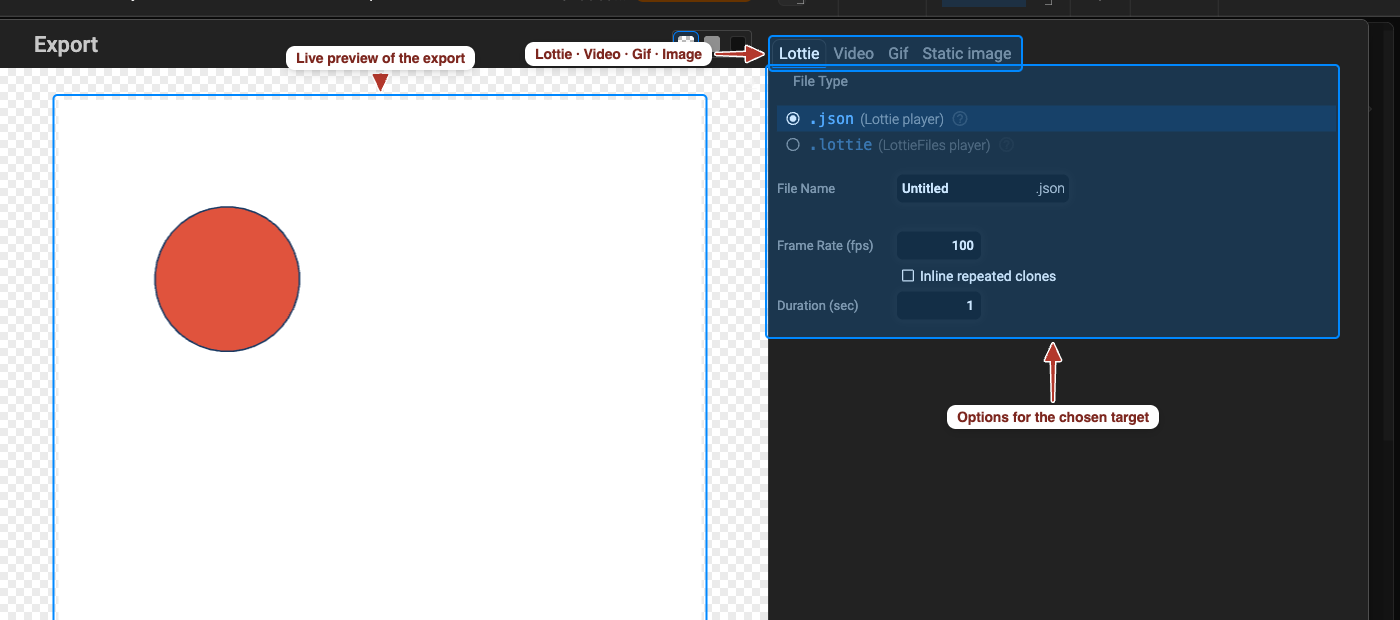
(⌘ / Ctrl + E) opens the same Lottie tab of the Export dialog:
- File Type —
.json(Lottie player) or.lottie(LottieFiles player) - File Name
- Frame Rate (fps) — the Lottie frame rate the keyframes are resampled to
- Inline repeated clones — write each repeater / clone copy as its own layer instead of a reusable pre-composition (larger file, no precomp indirection)
- Duration (sec)
- the preview player (lottie-web or LottieFiles) and the playback speed / loop controls above the preview
Not every editor feature has a Lottie equivalent — the dialog lists warnings above the buttons, and SVG ↔ Lottie support has the full matrix. Review the preview before exporting.
The export dialog: Lottie, video, GIF and static images.
Export Options
Section titled “Export Options”File › Export… (⌘ / Ctrl + E) or the Export button on the toolbar opens the export
dialog. The left side previews the result — with a checkered / white / black background choice,
playback speed (0.25× – 4×, Auto), a loop toggle and, for Lottie, the player to preview with
(lottie-web or LottieFiles). The right side has one tab per target:
| Tab | Writes | Main options |
|---|---|---|
| Lottie | .json / .lottie | frame rate, inline repeated clones, duration — see Save › Lottie JSON |
| Video | .mp4 / .webm | frame rate, duration, bitrate, size |
| Gif | .gif | frame, frame rate, duration, size, loop |
| Static image | .png / .jpeg / .webp / .gif / .svg | at frame / at time, size, background, quality, fit content |
Warnings for features the target cannot reproduce are listed above the buttons — review the preview before you click Export. Reveal in Finder / Explorer opens the saved file’s folder. The tabs shown depend on the document type; Lottie documents also offer a Pixodesk JSON/SVG tab for the reverse conversion.
Static Image
Section titled “Static Image”The Static image tab exports one frame. Options: File Type (svg, png, jpeg, webp,
gif), Image quality (0–1, for lossy formats), At Frame / At Time, Size (width and
height in pixels; the aspect ratio follows the document unless changed), Background colour
(transparent by default where the format allows it), Fit content.
Video and GIF
Section titled “Video and GIF”The Video tab renders the whole animation to .mp4 or .webm. Options: Frame Rate
(fps), Duration (seconds — defaults to the animation length), Bitrate, Size. Video has
no transparency; set the document background first if you need a solid colour. Gif exports the
same way with a Loop option and 256 colours per frame.
Convert Animation to Static Format
Section titled “Convert Animation to Static Format”To get a still picture of one moment of the animation, use the Static image tab: set At
Frame (or At Time), the output Size, an optional Background colour and Fit
content, and choose .svg for a vector snapshot or a raster format.